Scale House automation: try it on feature-6
Trucks are weighed in and out with no clicks: the camera reads the plate, the draft fills from the truck's last ticket, tare and gross are taken once the scale settles, the ticket is posted and printed, and the light turns green. A test site with emulated scales, cameras and lights is ready, so you can watch it work from your browser.
| Scale House | app.feature-6.bulksource.com, login demo.yard@example.com / password in the message, site Demo Quarry |
| TestYard | yard.feature-6.bulksource.com, login demo / password in the message |
| This guide as PDF | |
| Decisions | Decision log: what we decided while building it |
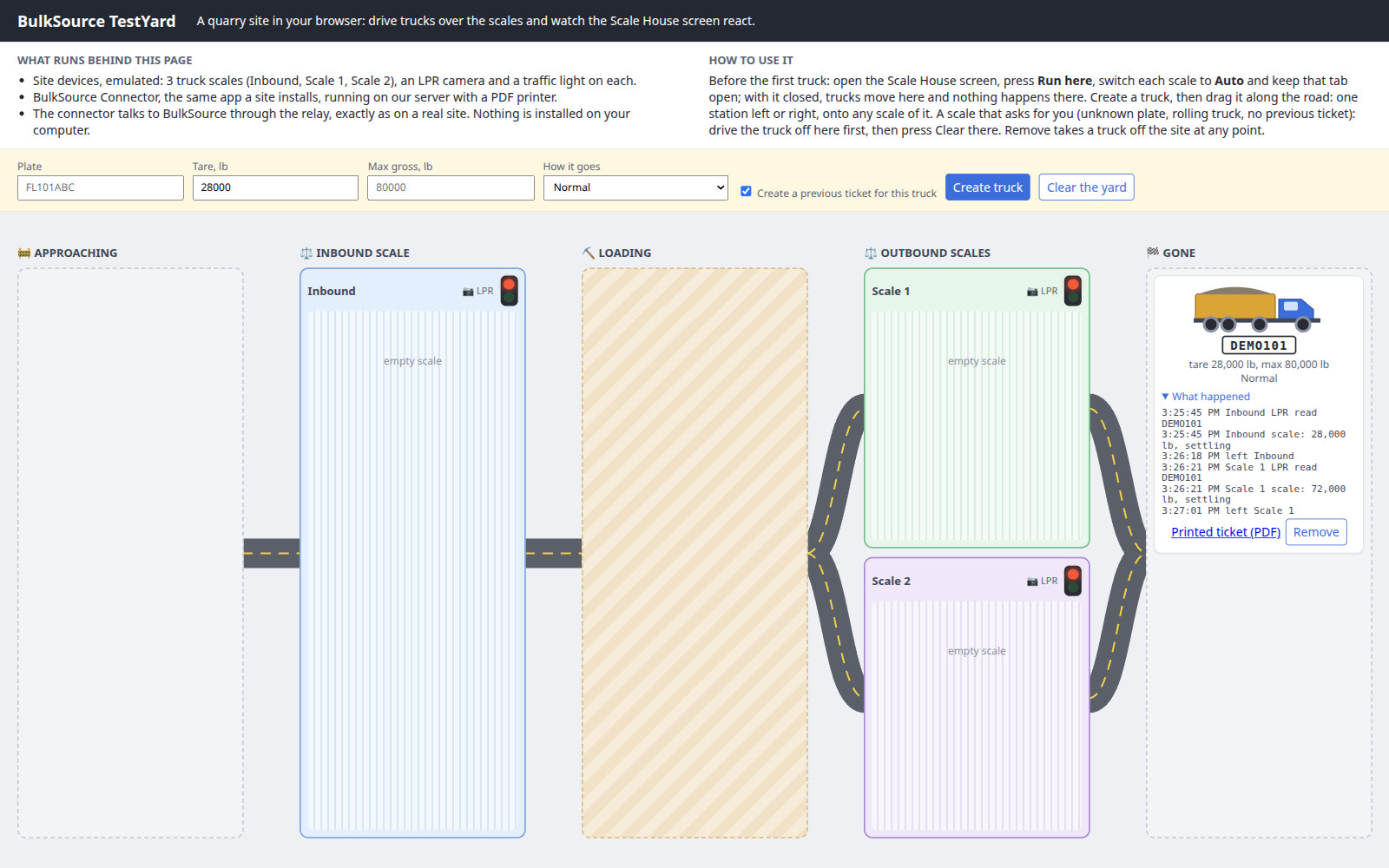
TestYard is a quarry site in your browser. It plays the site's devices (three truck scales, a plate camera and a traffic light on each) and runs the BulkSource Connector on our server, so nothing is installed on your computer. You drag trucks along the road there; the Scale House screen reacts as it would on a real site.
1. Set up a scale for automation
Demo Quarry is already set up. On another site: Account settings > the scale's name.
Behavior Settings
- Auto-populate Customer, Order, Project, Product: Truck's last load at this site or across all sites.
- Truck's last draft ticket first on: a truck coming back to weigh out gets its own draft.
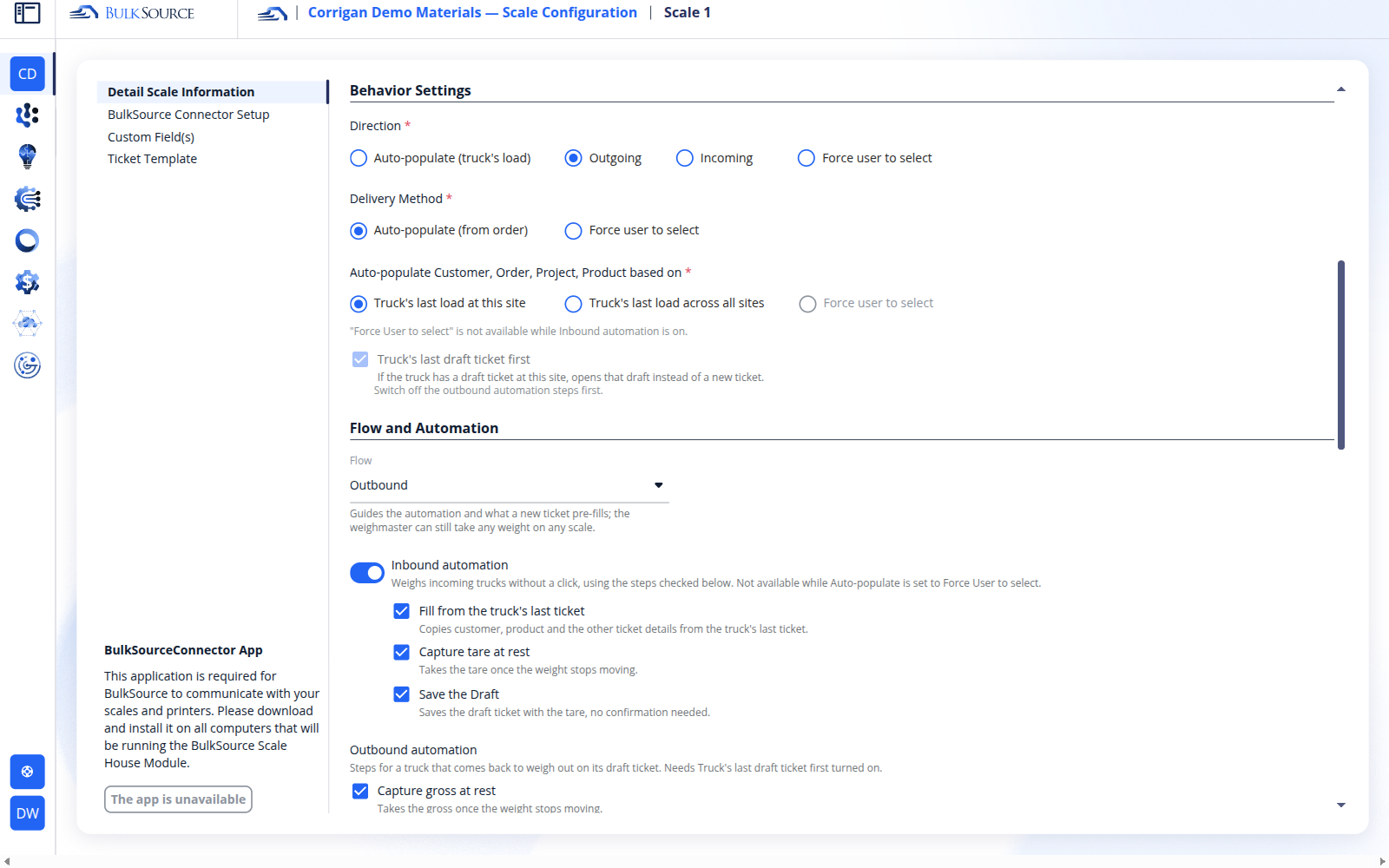
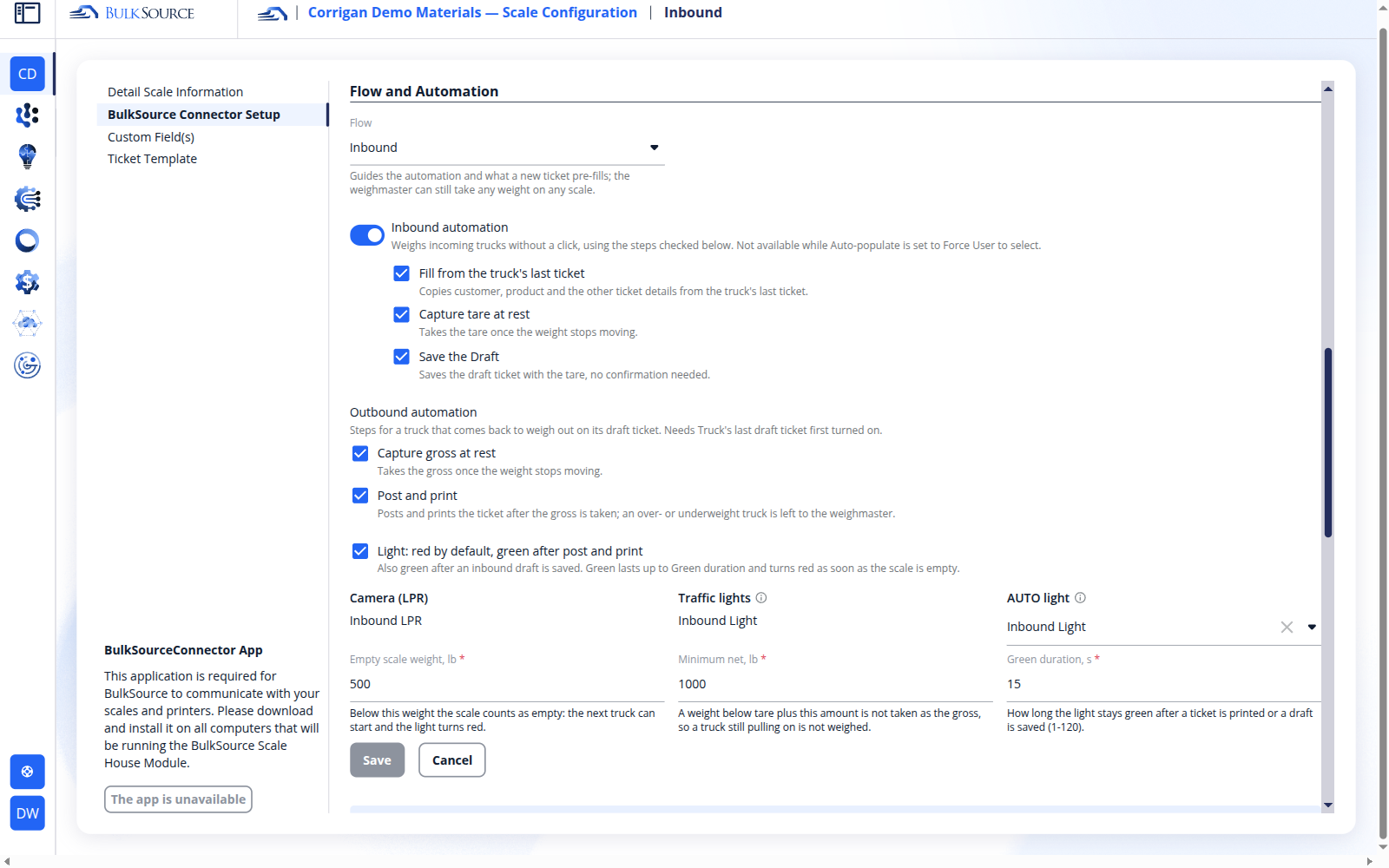
Flow and Automation
- Flow: Inbound for the scale trucks weigh in on, Outbound for the ones they weigh out on, Two-way when one scale does both. It also sets the Direction a new ticket starts with.
- Turn on the steps you want: Inbound automation (fill from the last ticket, capture tare, save the draft) and Outbound automation (capture gross, post and print).
- Light: red by default, green after a draft is saved or a ticket is printed. Pick the AUTO light and how long green lasts.
- Empty scale weight: below it the scale counts as free. After a ticket the scale waits for the truck to drive off before it takes the next one.
- Minimum net: the gross is taken only when it is at least tare plus this amount, so a truck with only part of its axles on the scale is not weighed.
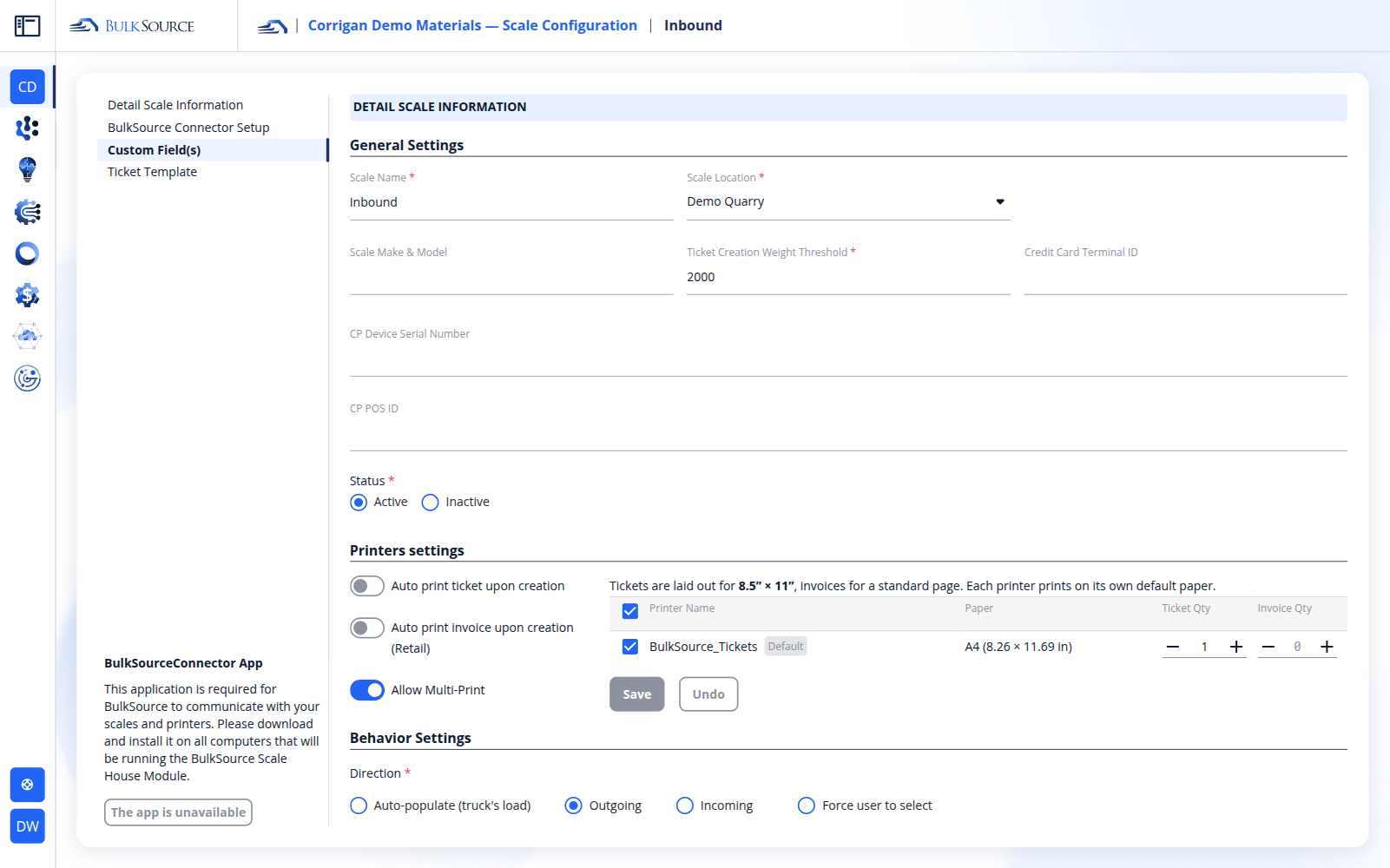
Printer
Under Printers settings, tick the printer the ticket goes to. Without one, automation cannot print.
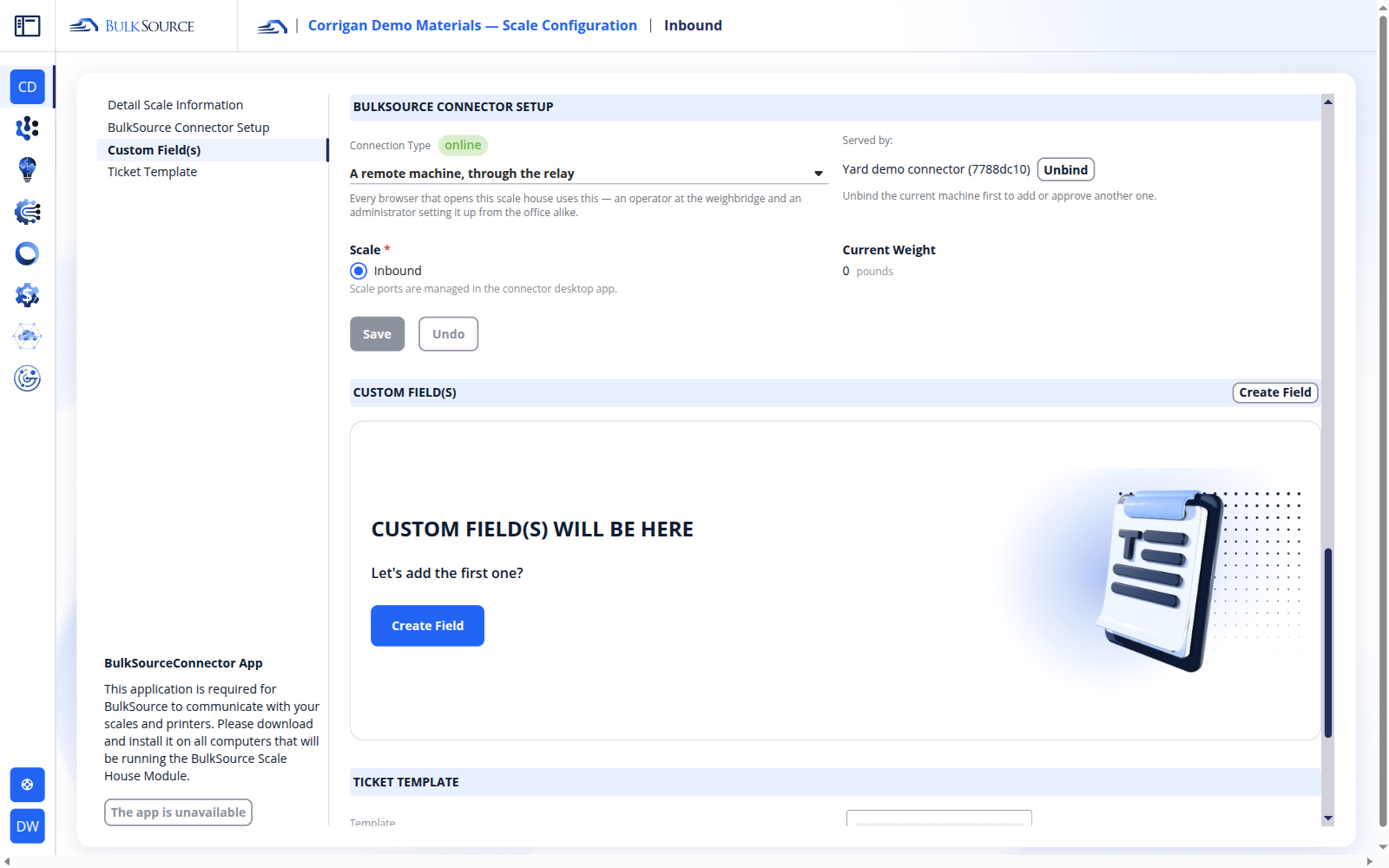
Connector
BulkSource Connector Setup shows the connector serving this scale and online. On Demo Quarry it is the TestYard connector.
2. Weigh a truck in and out
- Open Scale House, site Demo Quarry, scale All (multiscale).
- Press A (Auto) on each scale. The status line reads "Auto on Inbound, ticket locked. Now: Waiting for a truck". If a scale shows Run here, press it.
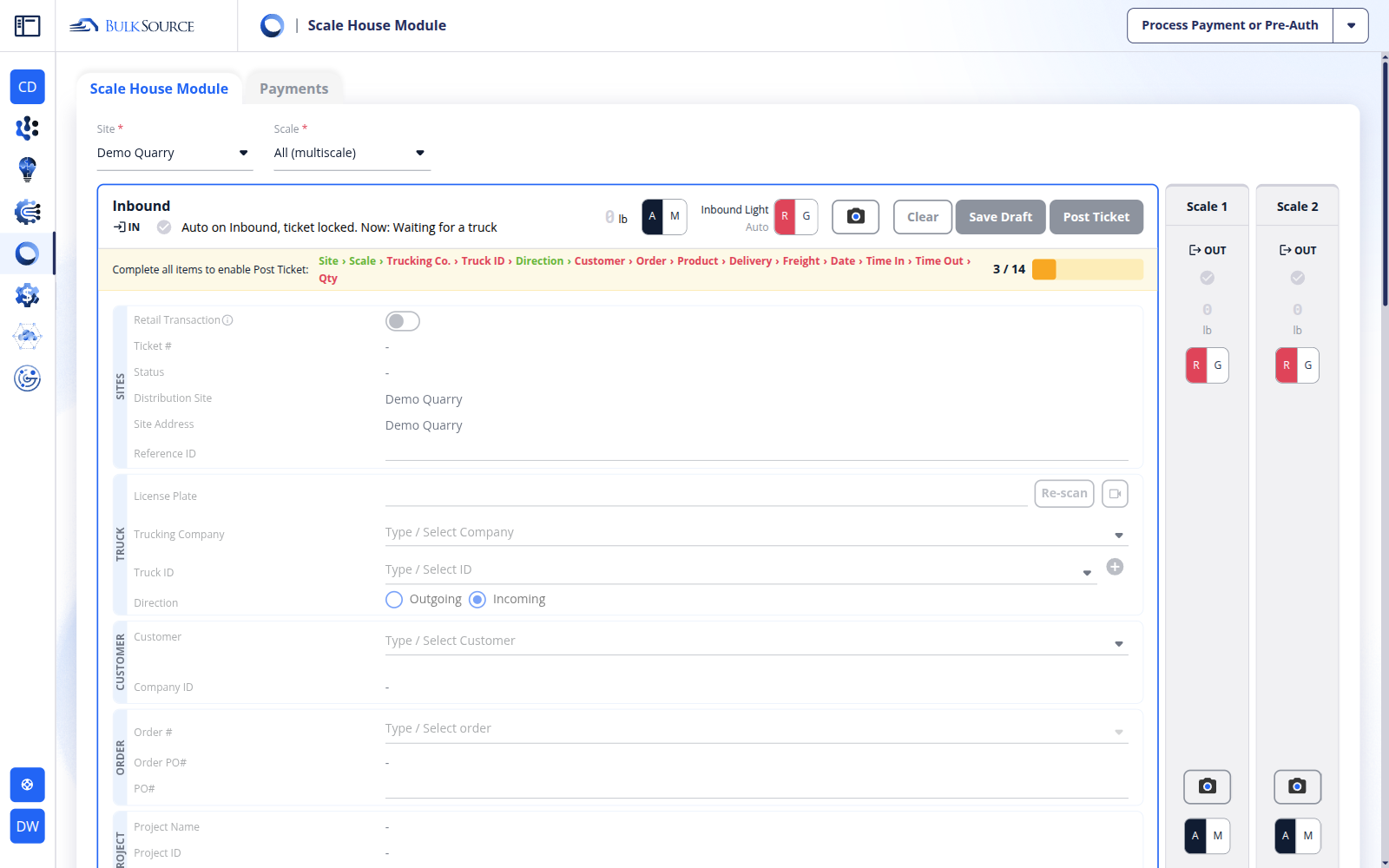
- In TestYard, type a plate (any letters and digits, e.g.
DEMO101), keep How it goes: Normal and Create a previous ticket ticked, press Create truck. The truck appears in Approaching.
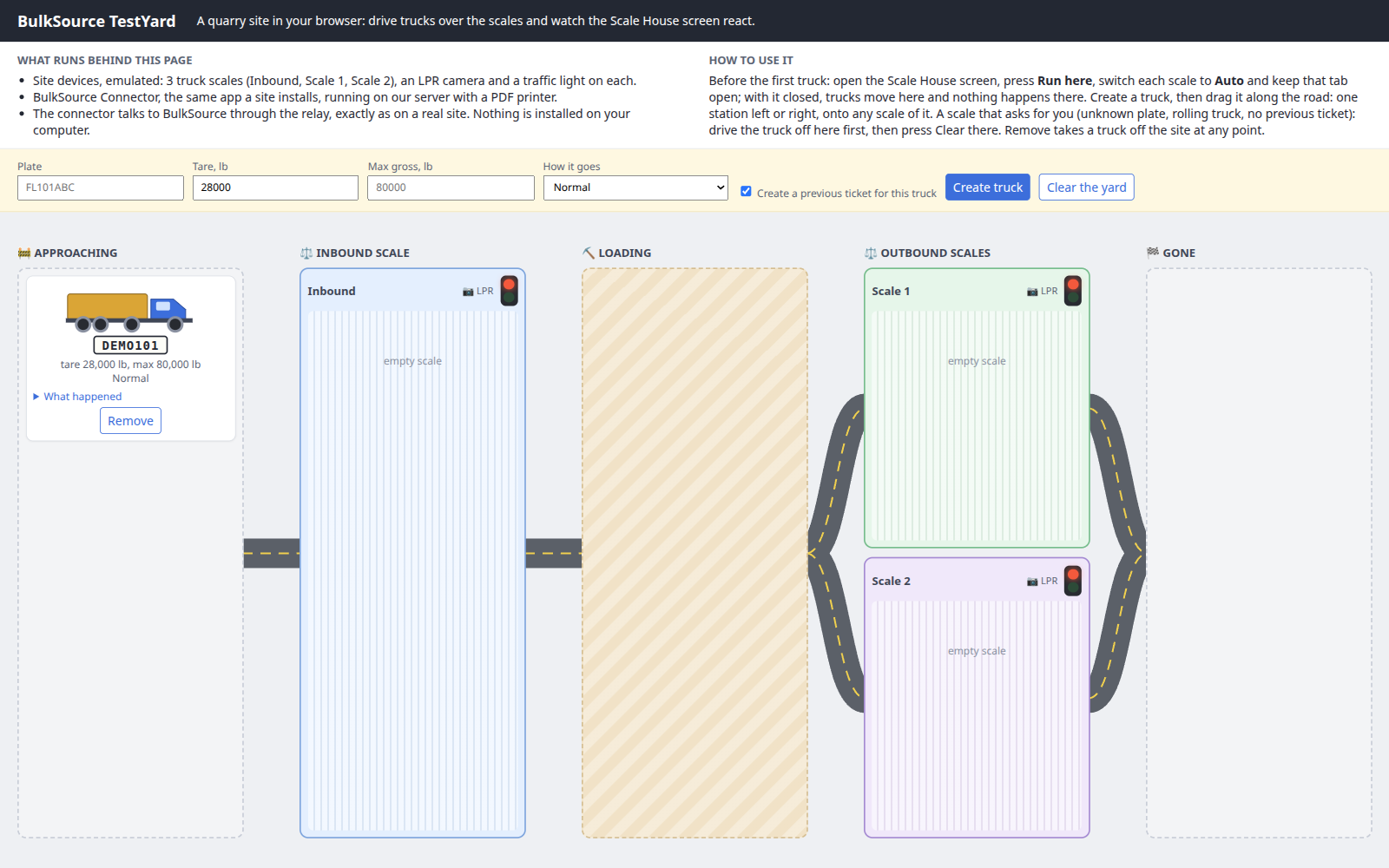
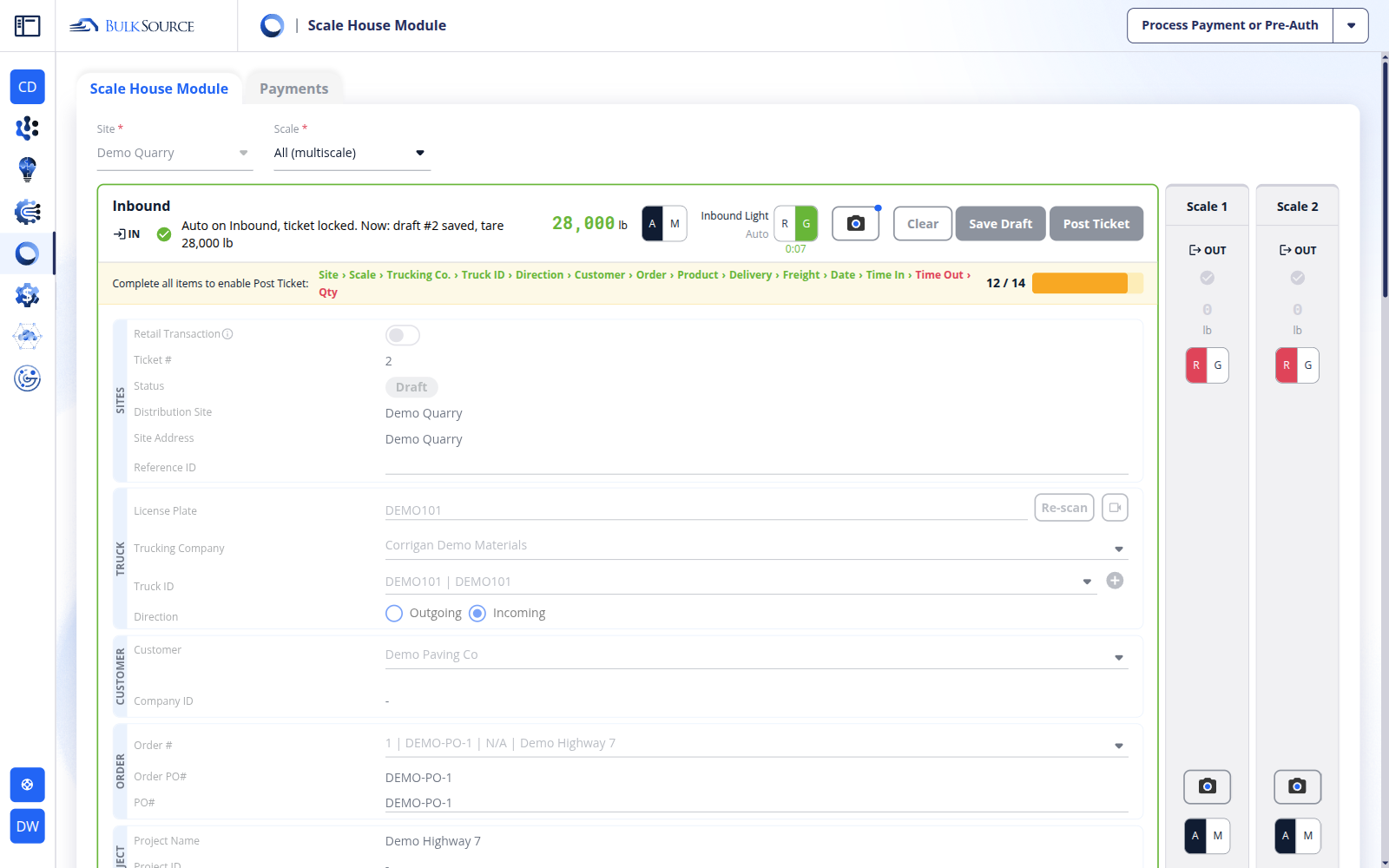
- Drag the truck onto the Inbound scale. In Scale House, within about 10 seconds: plate read, truck and order filled from its last ticket, tare taken, draft saved, light green.
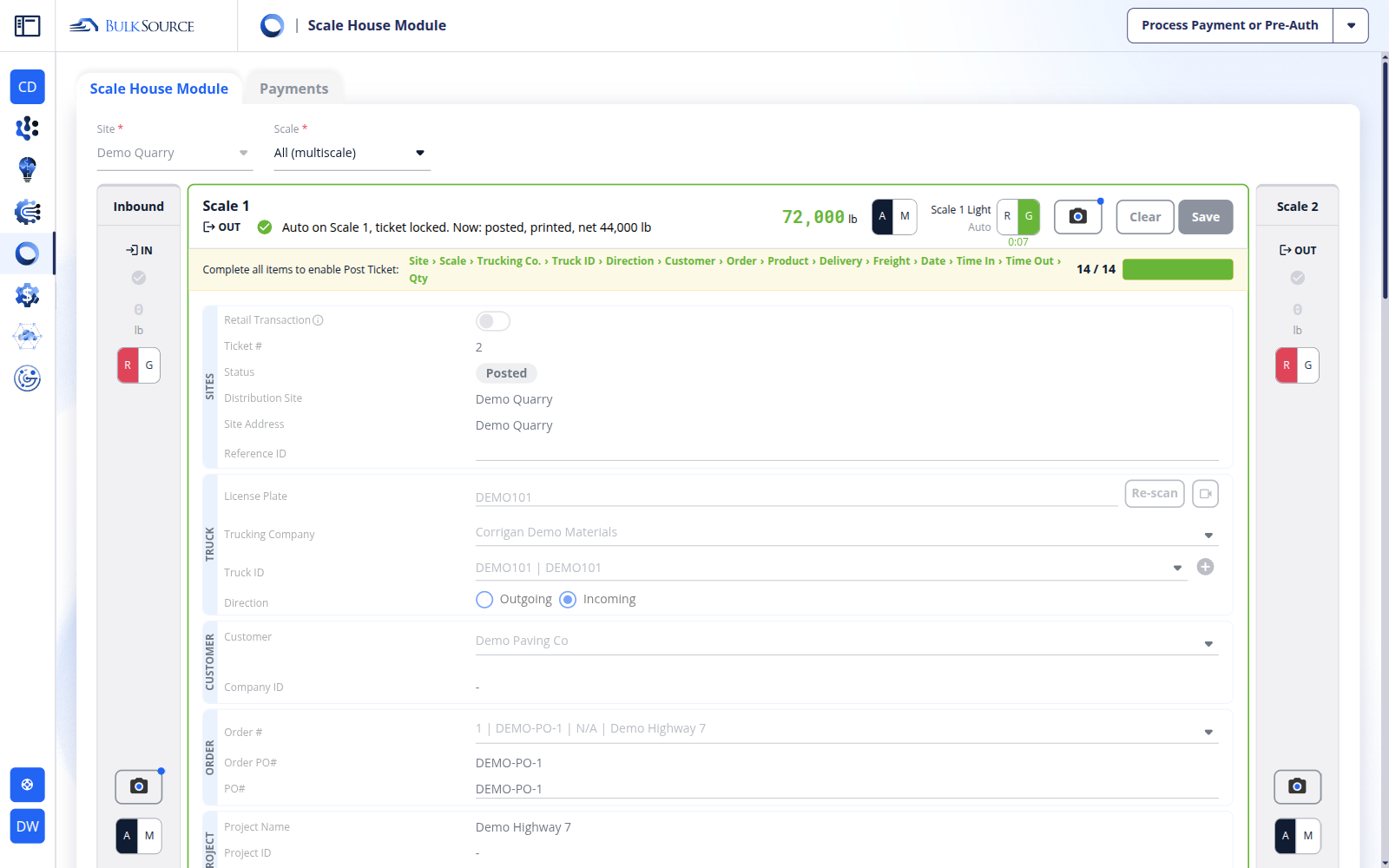
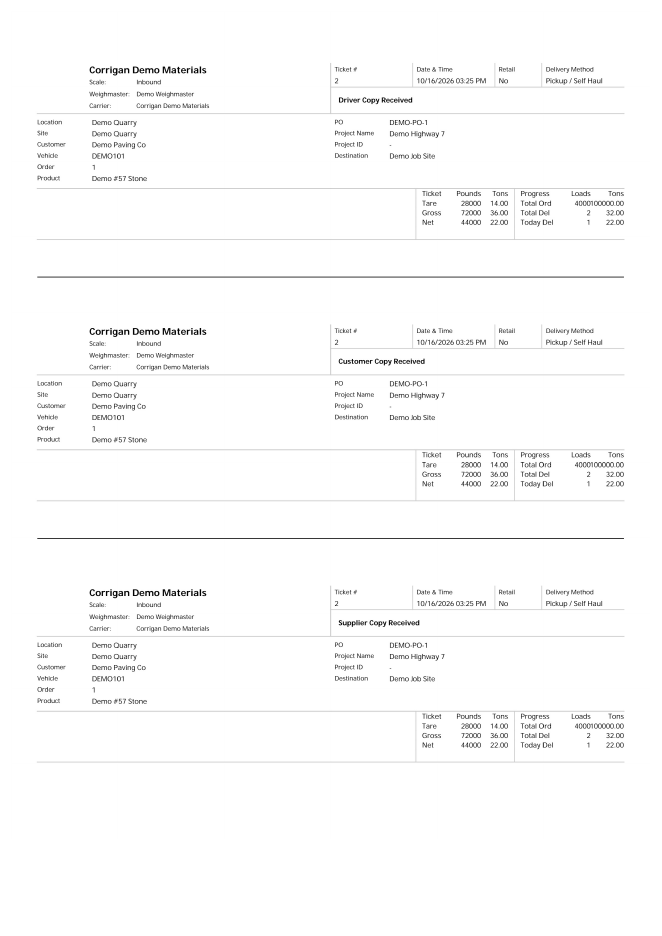
- Drag it to Loading (set load, lb if you like), then onto Scale 1 or Scale 2. In Scale House the draft opens on that scale, the gross is taken once the truck stands still, the ticket is posted and printed, and the light turns green.
- Drag it to Gone. The card links to the printed ticket.
3. When a truck needs the weighmaster
Automation stops on one truck and hands it to the weighmaster when something is off: the scale card turns red, the status line says why, and the browser tab title blinks. The other scales keep running.
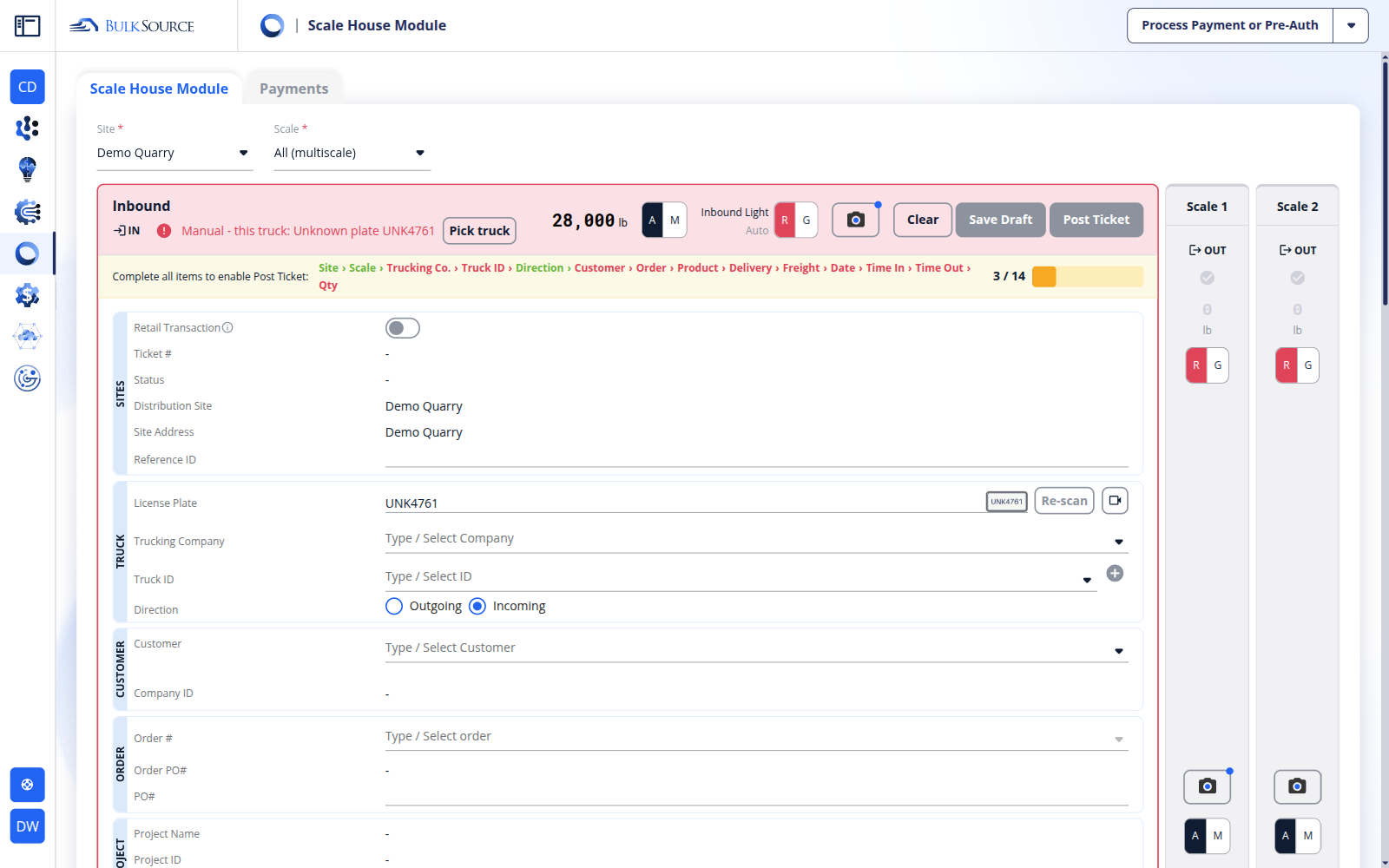
To try the cases, pick them in TestYard under How it goes:
- Unknown plate, Camera misread: the plate matches no truck.
- Rolling truck: the weight never settles.
- Overload, Underweight: gross above the truck's max or below its min; the ticket is not posted.
- Create a previous ticket unticked: a truck with no history, nothing to fill the draft from.
In TestYard, drive the truck off the scale first (drag it back, or Remove), then press Clear in Scale House.
4. Your feedback
The decision log lists what we decided while building this, one line each. If anything there or on the screen is not how you want it, write on #16103.